Porting Cocos Creator to H5 and then to UWP
Introduction
This document describes how to port a Cocos Creator project to a UWP application after converting it to an H5 project.
Publishing Cocos Creator as an H5 Project
Publish the H5 Project
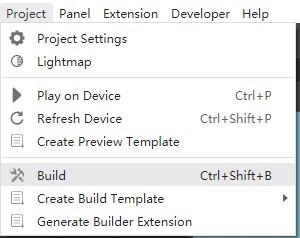
Open your project in Cocos Creator, using helloworld as an example. Click Project, then Build to open the publishing settings interface.
Cocos Creator provides two web platform page templates, selectable from the publishing platform dropdown menu: Web Mobile or Web Desktop. Their main differences are:
Web Mobiledefaults to stretching the game view to fill the entire browser window.Web Desktopallows specifying a resolution for the game view during publishing, and the game view will not change with the browser window size afterwards.
Here we use Web Desktop for publishing.
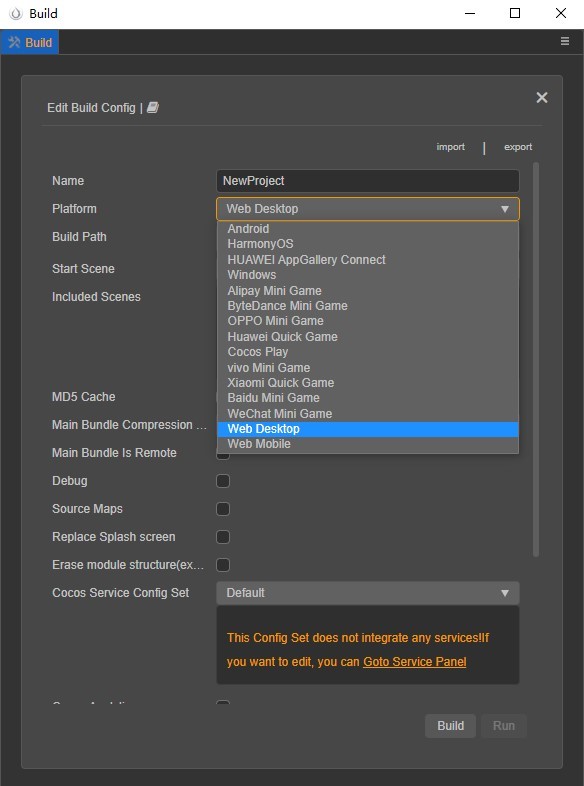
The Name of the published project should be based on your own project; in this example, it's NewProject. Other publishing parameter settings depend on the specific situation. After configuring, click the Build button.
Running the H5 Project
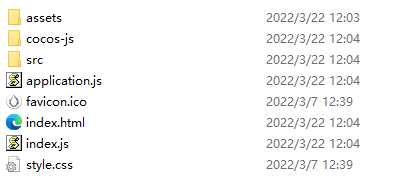
After successful publishing, a web-desktop folder will be generated in the publishing path:
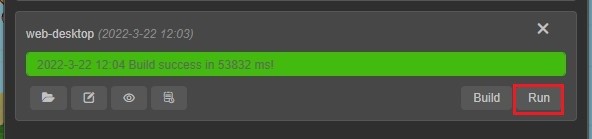
In the Build interface, click the Run button,
and the following interface will appear in the browser:
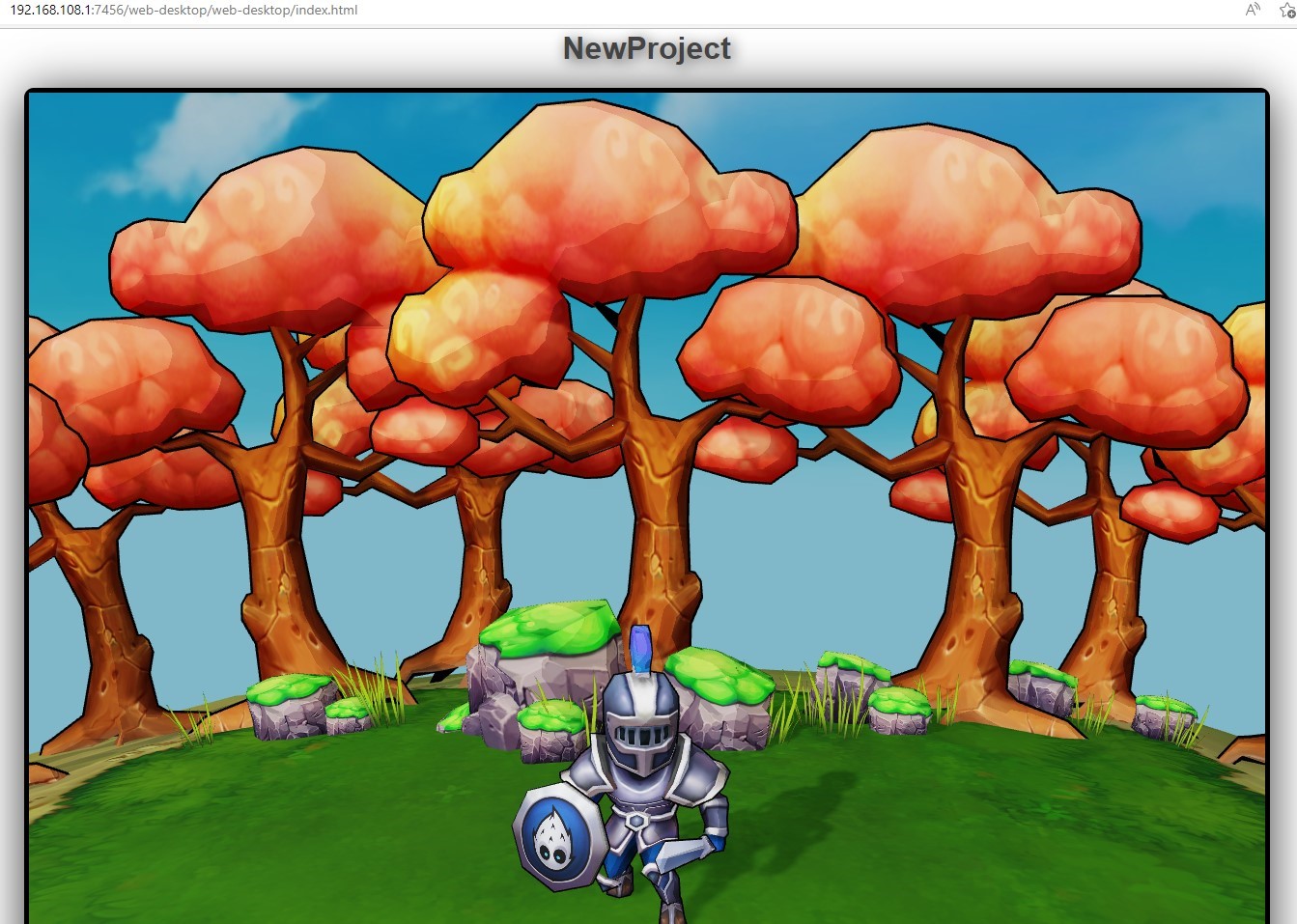
Publishing the H5 Project to a Web Server
To publish or share your game on the internet, simply click the "Open" button next to the "Publish" path to open the publishing directory. Then, copy the entire contents of the built web-mobile or web-desktop folder to your web server. You can then access the game via the corresponding address.
After publishing to the server, please provide the game's entry link address, for example: https://domain/index.html.