Porting Cocos2d to UWP After Converting to Win32 Project
Introduction
This solution provides a complete process for converting a Cocos2d project to a UWP application by using a Win32 project as an intermediate bridge. This solution fully leverages the advantages of MSIX packaging technology, enabling your Cocos2d game to enter the Microsoft Store ecosystem, achieve cross-device coverage, and enable modern distribution.
Porting Process Flowchart
Publishing Cocos2d as a Win32 Project
Development Environment
- The operating system must be Windows 10 RTM version 10240 or higher.
- Visual Studio 2015, Visual Studio 2017, or Visual Studio 2019 must be installed. Using Visual Studio 2015 as an example. Download link: https://www.visualstudio.com/downloads/download-visual-studio-vs
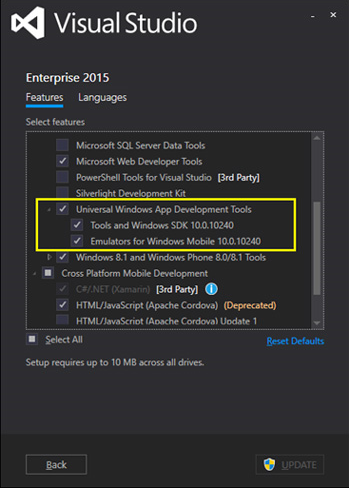
- During the installation of Visual Studio, the Windows 10 SDK needs to be installed. Using SDK 10.0.10240 as an example, as shown in the following image:
- For Cocos 2d development environment installation, 【Refer to】
Generating the Win32 Project
-
Use the
cocos newcommand in the Command Prompt to create your own C++ project. For example, if the project name ishelloworld(the actual name can be based on your project), save it toD:\cocos2d-3-17. Enter:cocos new helloworld -p com.coco2dx.org -l cpp -d D:\cocos2d-3-17. In the parameters of thenewcommand,cppindicates that the target project language is C++.cocos new helloworld -p com.coco2dx.org -l cpp -d D:\cocos2d-3-17
-
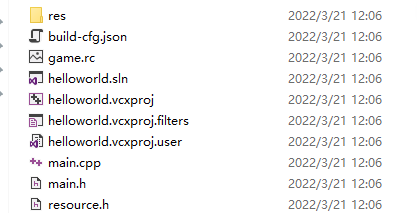
In the saved path, you can see the
proj.win32folder, which contains the C++ project.
Compiling the Cocos C++ Project
Open the proj.win32 project with Visual Studio 2017 and set helloworld as the startup item

For the libcocos2d and libSpine projects in the solution, Visual Studio needs to have the SDK installed. Using SDK 14393 as an example, right-click on each of these two projects, select "Properties", and set the Windows SDK version.

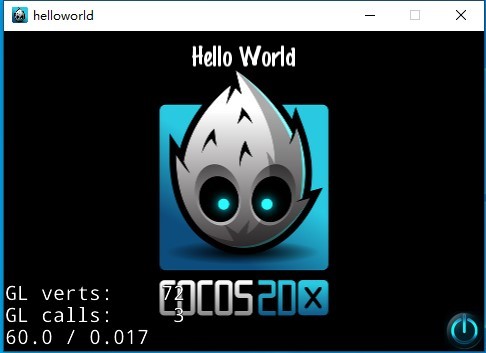
After compilation, start the project, and the following interface will appear
SDK Integration and exe Build
This stage is fundamental, ensuring the game's core functionality is complete.
SDK Integration
In the exported Win32 project, follow the standard SDK integration guide to complete tasks such as dependency library import, API calls, and configuration settings. Be sure to complete all SDK-related development and testing during this stage.
exe Build:
- Use Visual Studio to build your Win32 project, outputting a standard Win32 .exe file.
- Ensure all dependent libraries (such as DLLs) and resource files (images, configurations, etc.) are located in the same directory.
- It is recommended to use static linking to reduce external dependencies.

Build, Test, and Distribute
- Generate MSIX package: Generate the Microsoft Store app package in
.msixformat using MSIX packaging technology. - Local Testing: Install the MSIX package and perform comprehensive functional testing.
- Run WACK: Use the Windows App Certification Kit to certify the package, resolving any compatibility issues.
- Store Submission: Submit the certified MSIX package to Microsoft Partner Center to complete the store listing process.
Note: Please set your local computer to Developer Mode, otherwise UWP applications cannot be installed properly.
Download MG Ads C++ SDK 【Refer to】