Porting Unity Engine to UWP Project
Introduction
This solution provides a complete engineering practice guide for porting Unity games to the Windows UWP platform. We will guide you through setting up the development environment, configuring project publishing settings, resolving common technical issues during porting, and ultimately achieving distribution across PC and Xbox devices via the Microsoft Store.
This guide is applicable to Unity3D v5.2 and all subsequent versions.
Environment Requirements
- The operating system must be Windows 10 RTM version 10240 or higher.
- Visual Studio 2015, Visual Studio 2017, Visual Studio 2019, or Visual Studio 2022 must be installed.
- The minimum required Unity installation version is 5.2.0 or higher.
Environment Setup
- Install Windows 10 RTM version 10240 or higher.
- Install Visual Studio. The following example uses Visual Studio 2015. Download link: https://www.visualstudio.com/downloads/download-visual-studio-vs
- During installation, ensure the Windows 10 SDK is also installed.
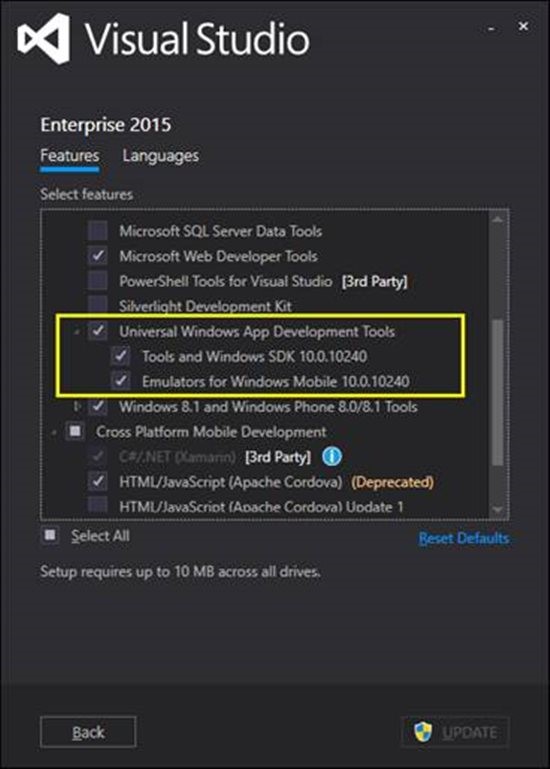
Game Publishing
- Open Unity's Build Settings window and select Windows Store.
- Choose
Universal10for the SDK andXAMLfor the UAP Build Type.
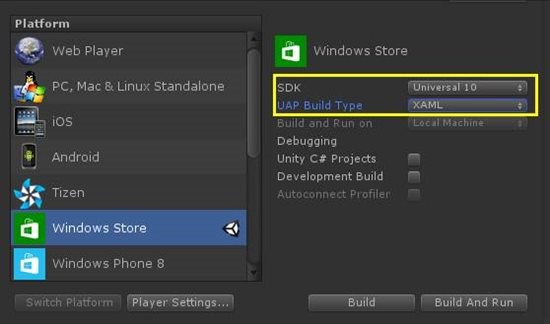
Notes:
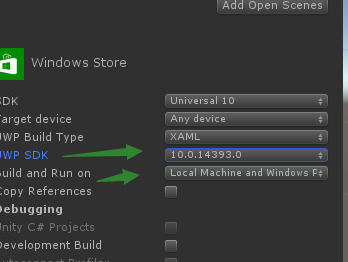
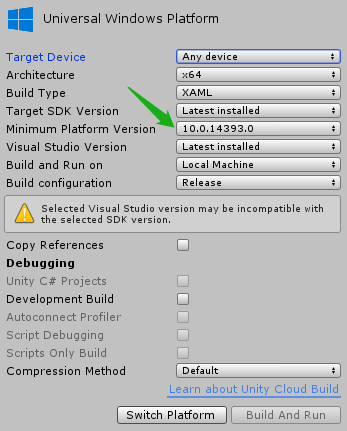
- In Unity 2017 and later versions, you need to select the WIN10 SDK version for packaging. Remember to choose both the SDK version and the target platform. A version higher than 393 is recommended; otherwise, version errors may occur.
- Avoid Chinese characters in the path, otherwise, errors may occur.
Packaging Using IL2CPP
The principle is the same as for iOS. Therefore, if a Unity project can build an iOS package, it can build a Win10 IL2CPP package, and business code modifications are generally not required. Player Settings considerations:
- Check
Run In Background. This affects how the PC version behaves when in the background.

- Set IL2CPP here.
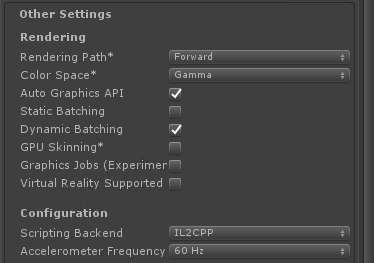
- Output: The exported IL2CPP project.
- After the project is generated, open the
.slnfile with VS2015.
UWP Project Overview
The Unity engine provides the functionality to directly export a UWP project. The exported project contains three sub-projects:
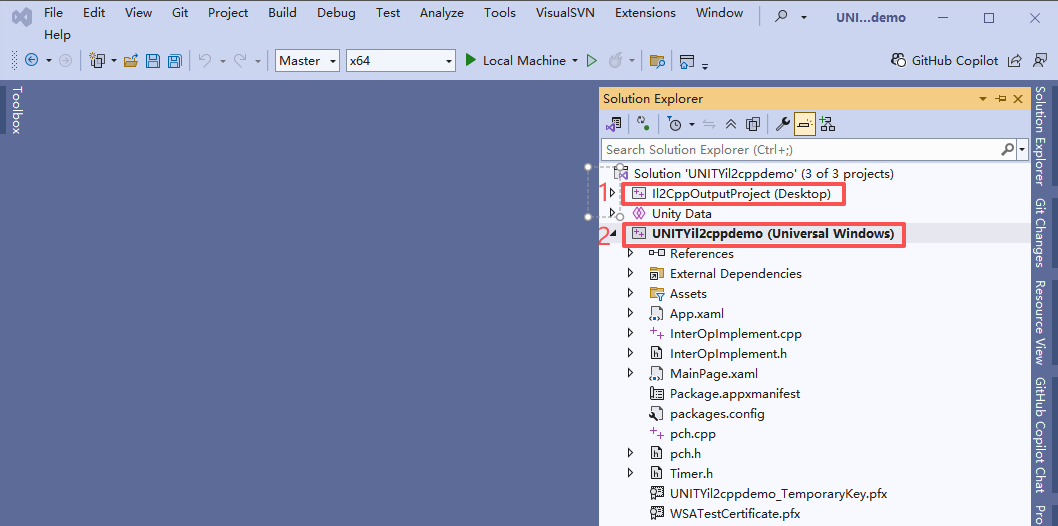
- Il2CppOutputProject: Converts Unity's C# code into C++ code using IL2CPP. This is not a direct one-to-one conversion from C# to C++; it involves an intermediate language layer, which helps protect the source code from easy decompilation.
- GameNameX (Universal Windows): This is the framework or container for the UWP application, used to integrate and run the game content generated by Unity. Developers need to integrate the MG Ads SDK within this project.
- Unity Data: This part contains UWP configuration files and the communication components between UWP and IL2Cpp, which are essential for the game to run.
Within the exported UWP project, Il2CppOutputProject is the only part closely related to Unity. Developers can choose to compile this project into a DLL and then reference it as an external library in the UWP application. This approach not only simplifies the UWP project structure but also provides higher security since the compiled C++ DLL is difficult to decompile, thereby protecting the game's source code. 【How to Compile an il2cpp Project】
To complete the entire UWP game build process, developers need to submit the complete UWP project, including all three components mentioned above. Subsequently, the project will be compiled on the designated machine to generate the final distributable UWP package, ready for publishing on the Windows 10 Store or distribution to users via other channels.
Introduction to Communication Between Unity and UWP
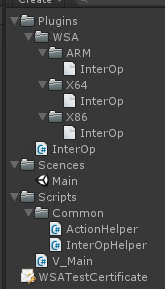
- To address communication issues when migrating Unity to UWP using IL2CPP, we provide corresponding plugins: 【IL2CPP Communication】【IL2CPP Communication Unity Plugin (includes DEMO and instructions)】. The plugin structure is as follows (This project is IL2CPPDemo, Unity version 5.4.4p4. The code usage example is in the V_Main script.):
-
Plugin Usage Method:
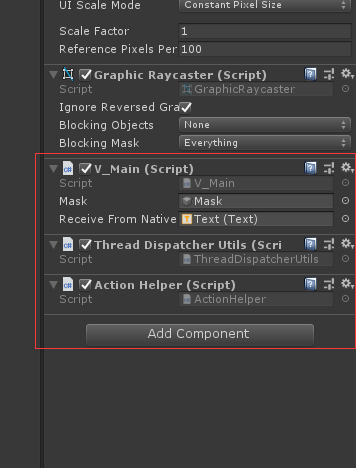
- An object is needed to attach the following three scripts: V_Main.cs, ActionHelper.cs, ThreadDispatcherUtils.cs. Ensure this object is not destroyed.
-
Interaction: There are two methods in Unity (U3D) and two corresponding methods in the UWP project: send methods and receive/callback handling methods. In Unity, the method to send a message to the UWP project is
InterOp.SendMessageToNative(0,""). TheFun_OnReceiveNativeMessage()method is used to receive the corresponding index value and string passed from the UWP project. -
After importing the plugin, errors may appear in higher versions of Unity. In lower versions, you could add the same
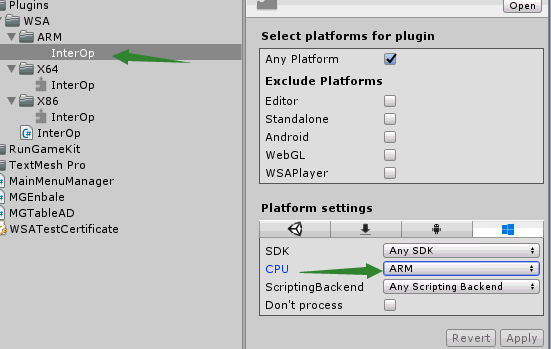
InterOp.dllfor X86, X64, and ARM platforms in the plugins folder. However, this is not possible in Unity 2017; you must select the corresponding platform. Even after platform selection, which is now different, errors might still appear in the game, but these can be ignored.
-
After generating the Win10 project and opening the .sln project, three steps are typically involved:
- Add reference to the MG SDK: Right-click -> Add -> Reference.
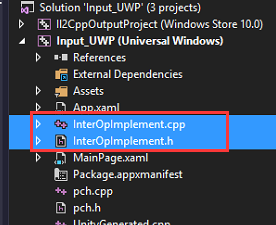
- Import the InterOpImplement.cpp and InterOpImplement.h files from the ILC2PP folder into the project (by adding existing files).
- Receive the index value passed from Unity via
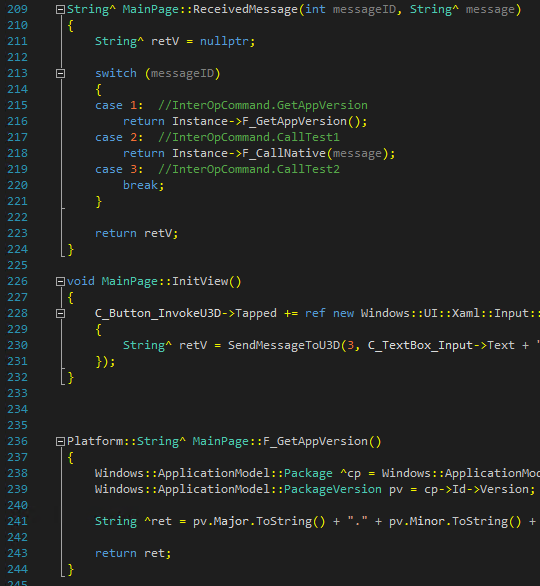
ReceivedMessage. Then, add the advertising calls you want to trigger based on the corresponding index value. After processing in the UWP project, send a response back to Unity with an index value usingSendMessageToU3D.
Practical Steps for Communication Between Unity and UWP:
-
First, register the receive handler function for messages from Native code.

-
Use the
InterOp.SendMessageToNative(int messageID, string message)function to send a message to Native code and get a return value.

-
Add the InterOpImplement.h and InterOpImplement.cpp scripts to the main project.
-
The usage example is in MainPage.xaml.h and MainPage.xaml.cpp.

-
After line 40 in this script, add the definitions:

-
The corresponding code in MainPage.xaml.cpp is around line 28:

-
Lines 61-63: Register the handler function for receiving messages from Unity (Note: this handler function executes on the Unity thread; sometimes you need to switch to the Native main thread for execution):

-
After line 209:
-
After the version porting is complete, you can integrate the MG Ads UWP SDK into the UWP project.
-
Developers integrate the MG Ads UWP SDK. 【MG Ads UWP SDK Download】
Estimated Man-Hours
| Item | Content | Man-Hours (Single Person) |
|---|---|---|
| Environment Setup | Setting up the development environment | 5 |
| Version Conversion | Exporting the game project to UWP version, fixing interface anomalies | 20 |
| Platform Adaptation | Adapting the game to the UWP platform, fixing adaptation issues | 30 |
| MG SDK Integration | Integrating MG SDK functions: login, payment, ads, community, etc. | 5 |
| Total | 60 |