How to Compile an il2cpp Project
Project Structure Introduction
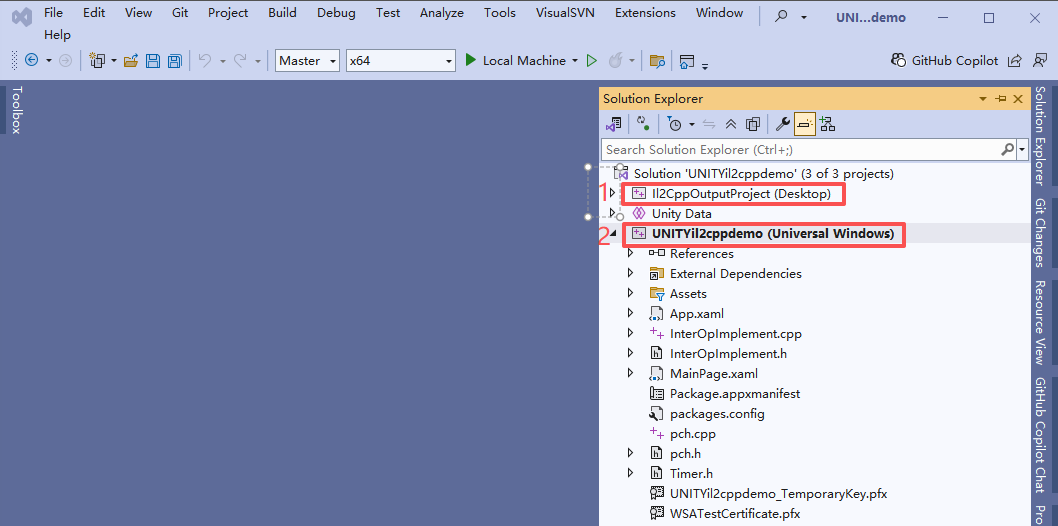
- Il2CppOutputProject: This project converts Unity's C# code into C++ code using IL2CPP. It's important to note that this is not a direct one-to-one conversion from C# to C++; it involves an intermediate language layer, which helps protect the source code from easy decompilation.
- GameNameX (Universal Windows): This is the framework or container for the UWP application, used to integrate and run the game content generated by Unity. Developers need to integrate the MG Ads SDK within this project.
- Unity Data: This part contains UWP configuration files and the communication components between UWP and IL2Cpp, which are essential for the game to run.
In the exported UWP project, Il2CppOutputProject is the only part closely related to Unity. Developers can choose to compile this project into a DLL and then reference it as an external library in the UWP application. This approach not only simplifies the UWP project structure but also provides higher security since the compiled C++ DLL is difficult to decompile, thereby protecting the game's source code.
Operating Steps
-
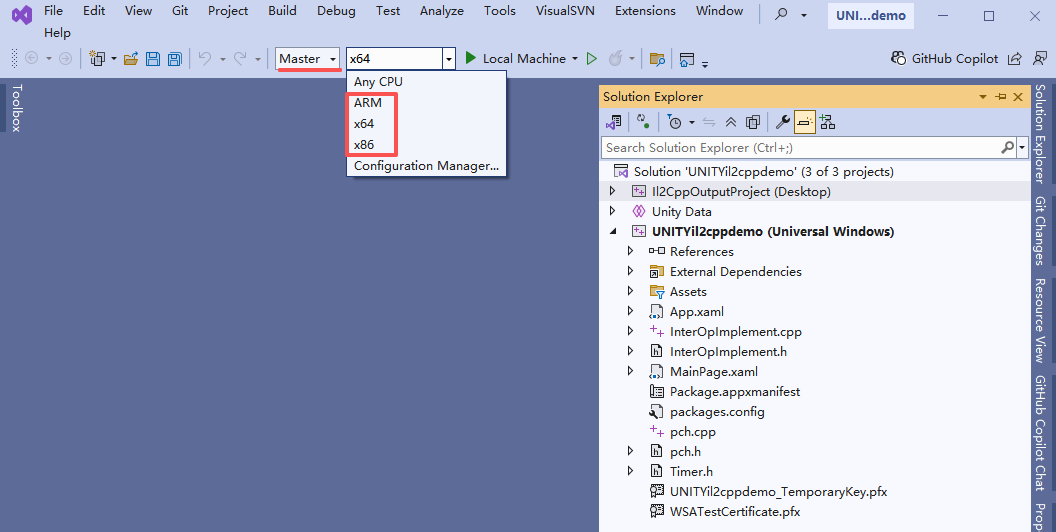
Select Master configuration and compile the
Il2CppOutputProject(item 1 in the diagram) three times, separately for x64, x86, and ARM platforms. To prevent losing previously generated files when cleaning the solution, copy the generated DLL files to a custom folder in the root directory.
-
After compilation, copy the four files (
GameAssembly.dll,GameAssembly.exp,GameAssembly.lib,GameAssembly.pdb) from the following directories to a folder structure in the solution root directory:\build\bin\x64\Master\\build\bin\x86\Master\\build\bin\ARM\Master\
At this point, you can remove the
Il2CppOutputProject(item 1) from the solution.
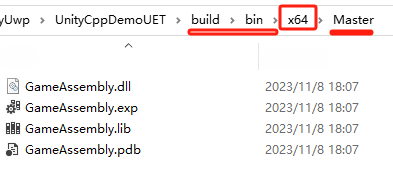
Create a
GameAssemblyfolder in the solution and copy the four DLL files from the previous step here. The directory should look like this:

-
Reference the DLL in the Solution
Right-click on the UWP project (item 2 in the diagram), go to Properties -> Pre-Build Event. Use commands to copy the DLLs to the output directory during package compilation to complete the packaging process.
Pre-build event command:
copy /y $(SolutionDir)\GameAssembly$(Platform)$(Configuration)\GameAssembly.dll $(SolutionDir)build\bin$(Platform)$(Configuration)
copy /y $(SolutionDir)\GameAssembly$(Platform)$(Configuration)\GameAssembly.lib $(SolutionDir)build\bin$(Platform)$(Configuration)
copy /y $(SolutionDir)\GameAssembly$(Platform)$(Configuration)\GameAssembly.pdb $(SolutionDir)build\bin$(Platform)$(Configuration) -
Compile and package the
UNITYil2cppdemo (Universal Windows)project, then upload it to the Microsoft Store.