Setting Up the Cocos2d Development Environment
Introduction
This document describes how to install the Cocos2d development environment on your computer.
This guide uses Cocos2d v3.15.1 as an example.
Installing Python
-
After downloading the 64-bit installer for Python 2.7.12 from the official website, run the installer—for example, install it to the path
D:\Python27. Right-click "This PC", select "Properties", then "Advanced system settings", and click "Environment Variables". Edit thePathvalue under System Variables and addD:\Python27.
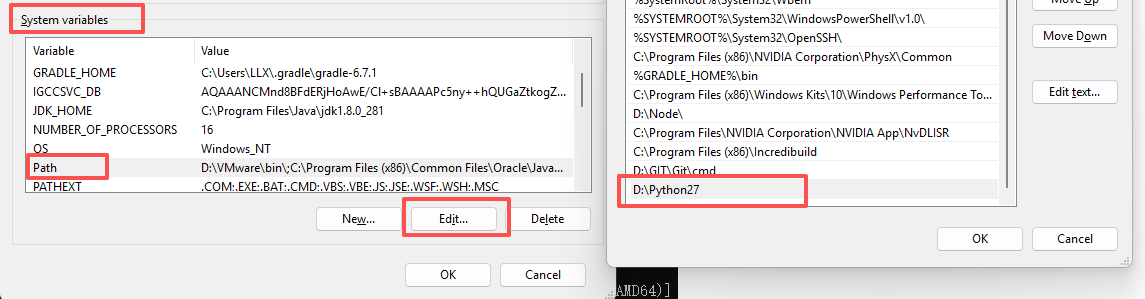
-
Open the Command Prompt, type
python, and if the prompt information shows Python 2.7.12, the installation was successful.

Installing Cocos
-
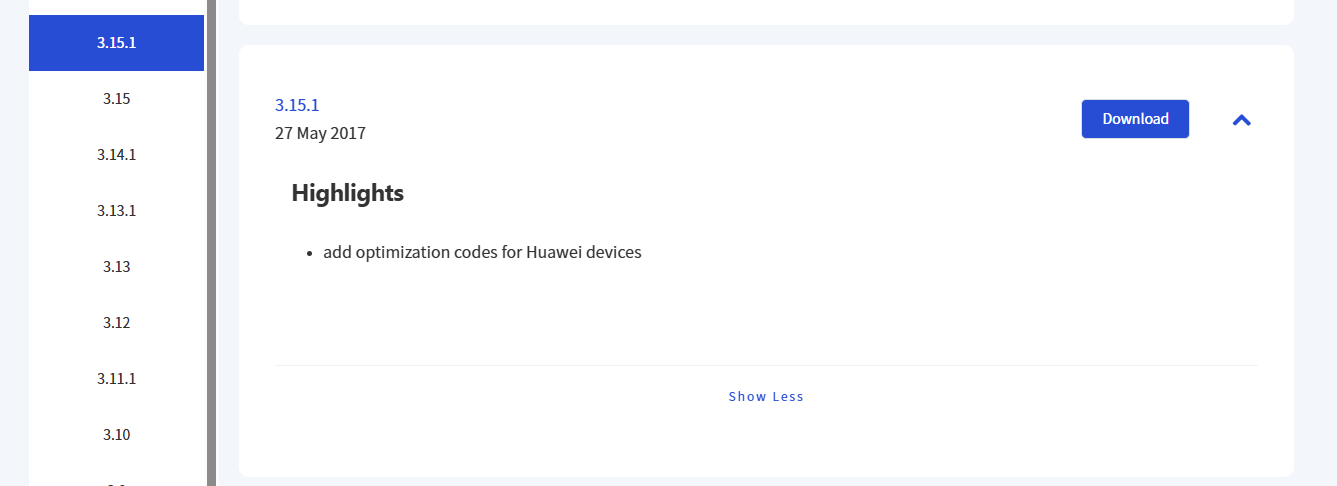
Download version 3.15.1 from the Cocos official website Cocos Engine_Game Development Engine:
-
After downloading version 3.15.1 from the Cocos website, extract it to a local directory, for example, under
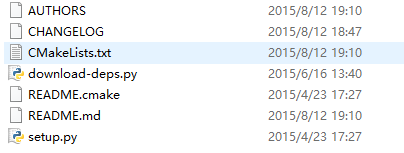
D:\cocos315\. In the project directory, there is asetup.pyfile; click this file.
-
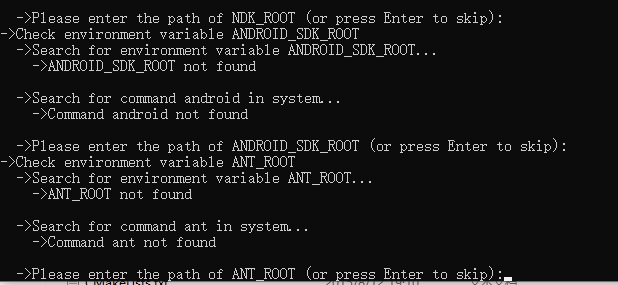
A command line window will pop up, prompting for Android development environment settings. If you are only configuring the development environment for the UWP platform, you can press Enter directly to skip these three settings.
-
After completing the above setup, the Cocos environment variables will be configured. Run Command Prompt as an administrator, type
cocos, and the Cocos version information will be displayed.