FAQs
MG Ads SDK
- UGUI converted to OnGUI
- Unity version 4.0.0
Issue: UI positions become chaotic when switching windows in the OnGUI version.
Solution: Recalculate the UI position every frame in Update().
Win32 to UWP Process and SDK Integration
Issue: Cannot find file paths when converting EXE to UWP using Desktop Bridge.
Solution: Ensure there are no spaces in the folder path where the EXE is located, and clear any files from previous failed attempts.
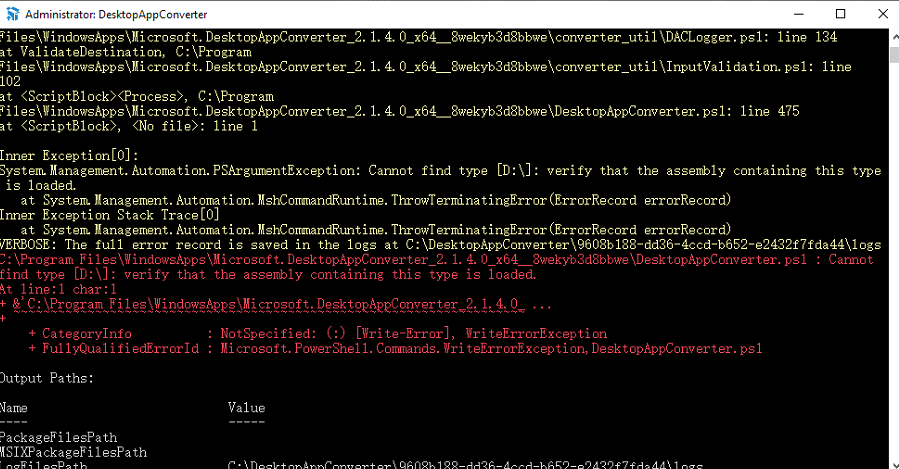
Exporting UWP Package from High Version Unity
UnityException: Failed to run reference rewriter with command ...
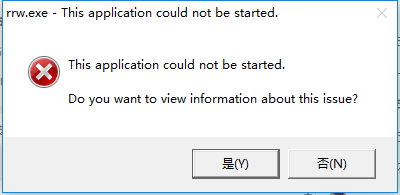
Solution: Update to a Win10 SDK version above 14393, and choose 10250 (the lowest version) during packaging.
Issue: Significant lag when running UWP published to mobile.
Solution: When publishing for UWP, set the Solution Configuration to "Master". For mobile testing, set the Solution Platform to "ARM"; for PC, set it to "X86".

MG Ads SDK: UI Redesign for OnGUI and UGUI Versions
Issue: Some UI sprites are missing when developers import the project.
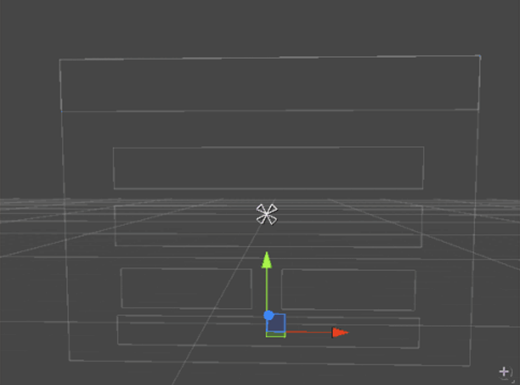
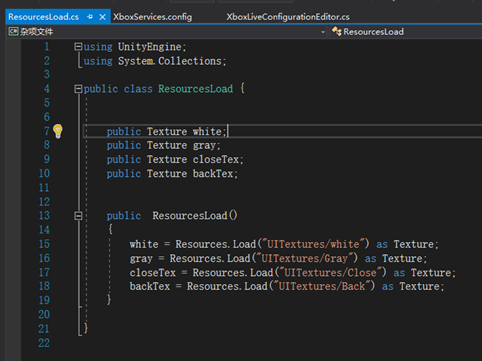
Solution: Developers must use a UI Canvas. UGUI elements must be child objects of a canvas. Wrote a resource loading script to resolve missing sprite resources.
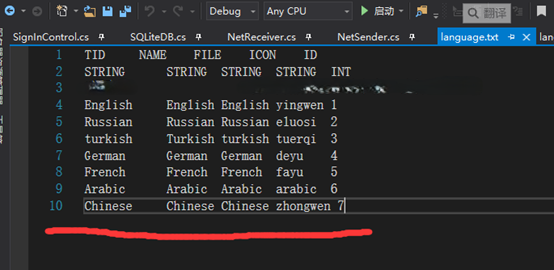
Issue: RRWorld Language Display Problem (Cannot select Chinese language)
Solution: Add Chinese language configuration to the configuration table.
In the Akawe() method of the Localization.cs script, add the following code to set the game's initial language to Chinese.
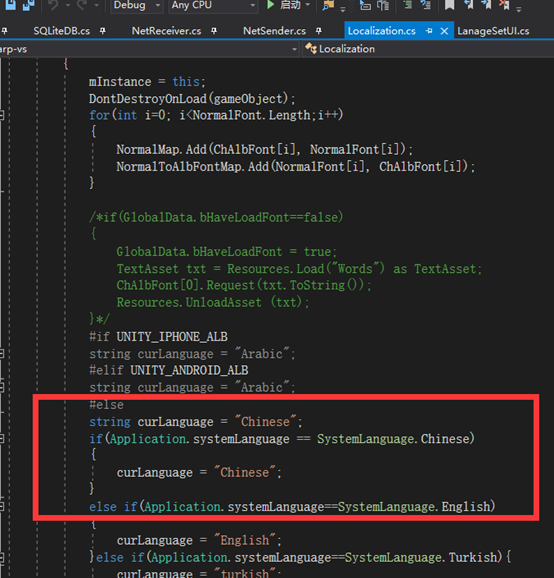
Comment out the code that saves the current language.

Issue: Missing some DLLs when exporting UWP project (Unity version 5.3.5p8). Cannot select Win10 SDK version; system automatically defaults to the highest installed SDK version (e.g., 10.0.15063.0).
Solution: It is known that exporting UWP projects with Win10 SDK version 10.0.15063.0 has issues. Uninstall this version of the SDK.
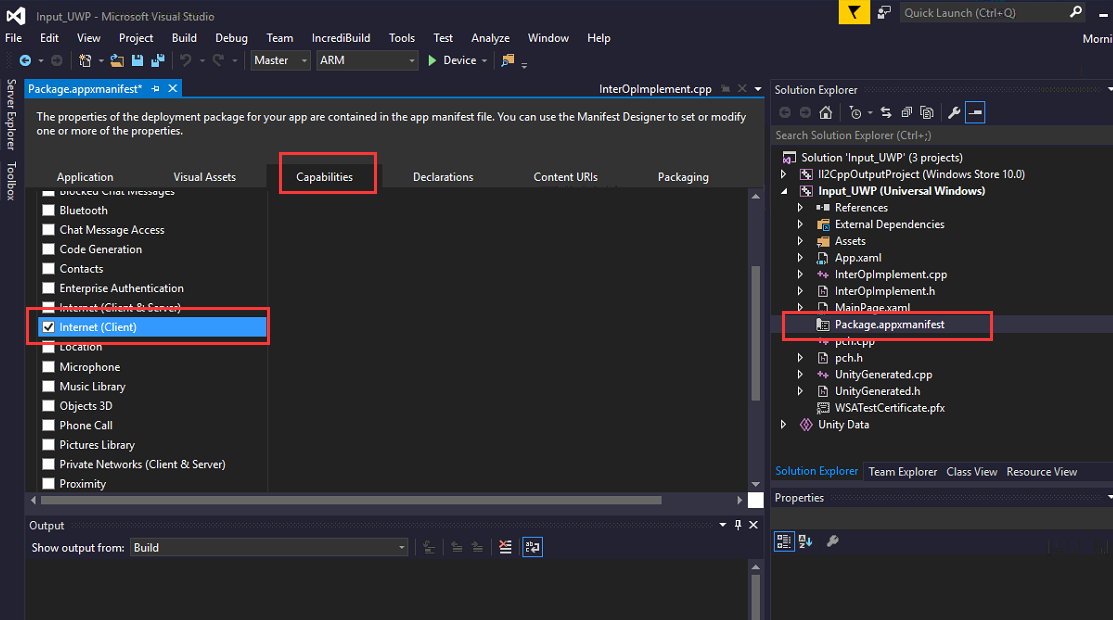
Issue: Developer's client fails to connect to the network.
Solution: In the client capability selection, if the client needs to connect to the internet, check "Internet (Client)" as shown below.
Issue: Unable to find the v141 build tools when opening the UWP project in VS2015.

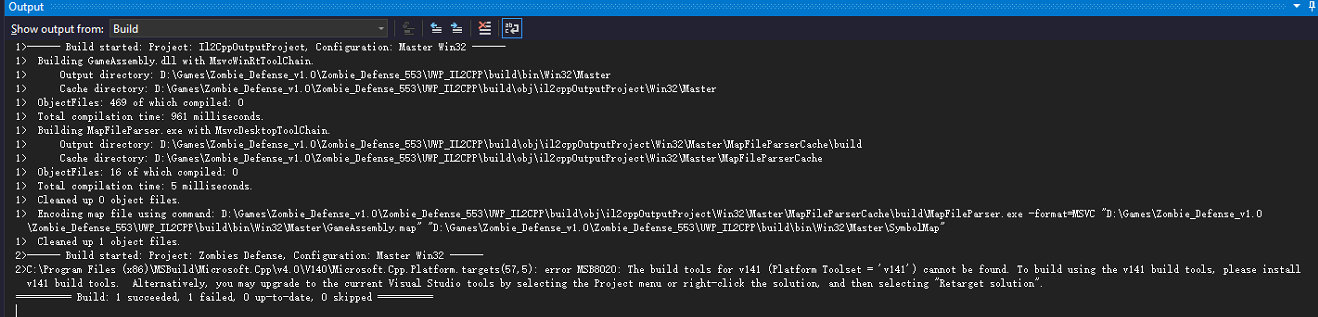
Solution: Change the project toolset.
In Visual Studio, in Solution Explorer, open the shortcut menu for your project (not your solution) and select Properties to open the Project Properties Pages dialog.
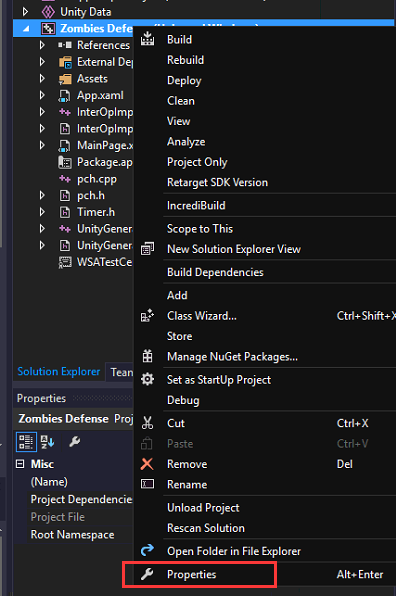
In the Properties Pages dialog, open the Configuration dropdown and select All Configurations.
In the left pane of the dialog, expand Configuration Properties, then select General.
In the right pane, select Platform Toolset, then choose the desired toolset from the dropdown list. For example, if you have the Visual Studio 2015 toolset installed, select Visual Studio 2015 (v140) for your project.
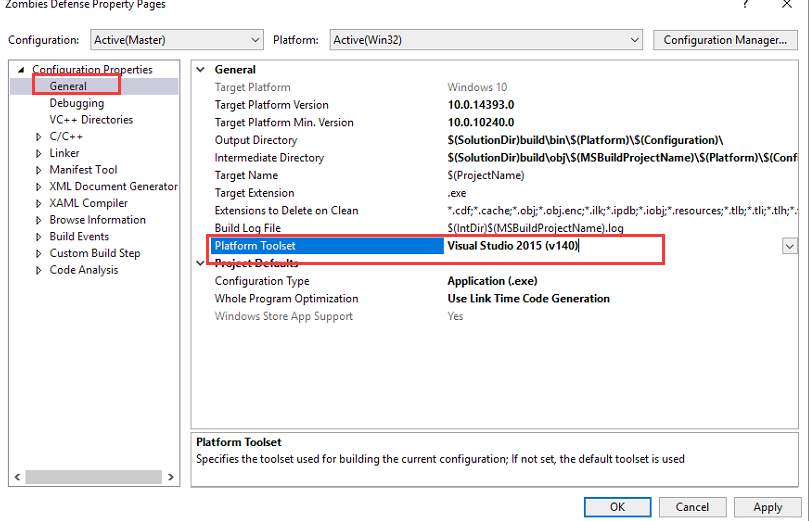
Select the OK button.
Issue: UWP project client cannot write files (cannot download from server to local folder).
Solution: Check the "Removable Storage" capability option in the project.
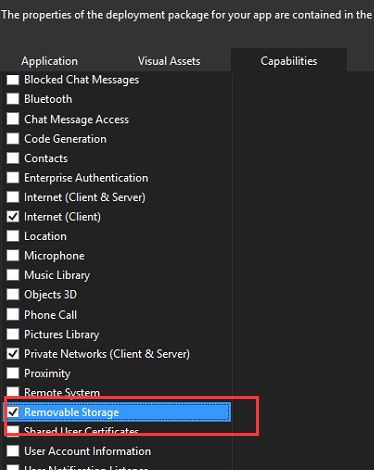
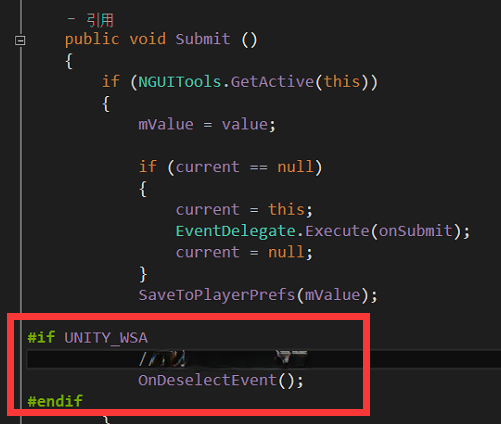
Issue: NGUI input field cannot be activated by left mouse click on PC, and virtual keyboard crashes on mobile (Unity 5.3.5p8, NGUI 3.6.2).
Solution: Modified NGUI's UIInput code so the input function remains active and does not close after activation, resolving the input issue.
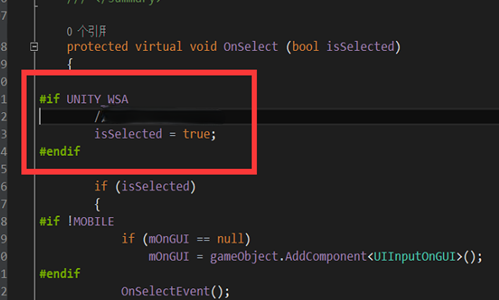
Issue: Microsoft payment client callback error causing game crash.
Solution: Fixed the client callback data. (Ensure data sent from the client to the server is passed back unchanged).
Issue: Microsoft payment cannot detect panel closure, preventing exit from payment state if closed midway.
Solution: Added a timer during Microsoft payment to regularly close the payment state.
Issue: Unity editor Builds x86_64 exe that can be converted via Desktop Bridge to x86 -packagearch x86
Example command: DesktopAppConverter.exe -Installer C:\UnityProjects\RRW -AppExecutable MSPayTest.exe -Destination C:\OutPut -PackageName "MiracleGamesInc.FreeBlockCrush" -Publisher "CN=58663F9C-6D29-43E9-A166-ECDA38FC46EA" -Version 1.2.8.0 -MakeAppx -Sign -Verbose -AppDisplayName "MSPayTest" -PackageDisplayName "MSPayTest" -PackagePublisherDisplayName "Miracle Games Inc" -packagearch x86